Strava & Samsung Galaxy Watch is a great combination to follow your fitness goals. The app supports Samsung’s watches since it was first launched on the Gear S3. Since then, it has been a must-have or essential health tool for users. Now, the Wear OS 6-powered Galaxy Watch 7, Watch Ultra, & Watch 8 Classic are also part of Samsung. Further, to make it a healthy partnership, Samsung & Strava offer a one-month free premium subscription for all users. Strava has recently announced that it will stop supporting Wear OS 2 watches, except Samsung smartwatches.
Most users use Strava over Google Fit or other fitness apps due to its accuracy, plenty of workout modes, sharing, and hassle-free synchronization. Run with Strava, track your route, trail your run or bike, activate advanced modes, and track the distance are a few features of the app to mention here. It gives you daily challenges, motivates you to motivate, and lets you share data with friends or connected devices. In this complete guide, I will explain how to use Strava on Galaxy Watch Series devices.
1. Install Strava
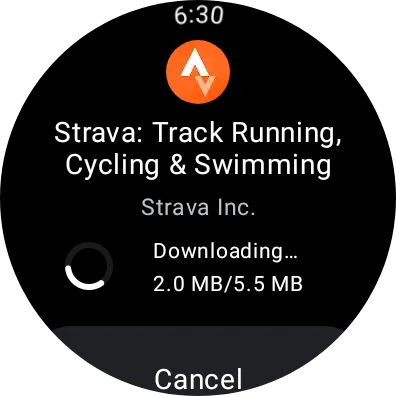
It is the first step you can perform from the Play Store. The app is available in the Play Store, and you can download it on a paired smartphone & smartwatch.
2. Open & Sign in
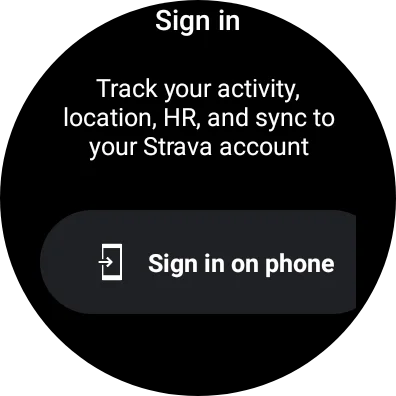
The app needs to be first signed up on your paired smartphone. If you don’t have a previous account with the app, then first make a new account. The good thing is that for a limited time, Samsung offers 30 days of a free trial of premium features. All the features are paid for, and you can use them for free.
3. Authorize the app & give permissions
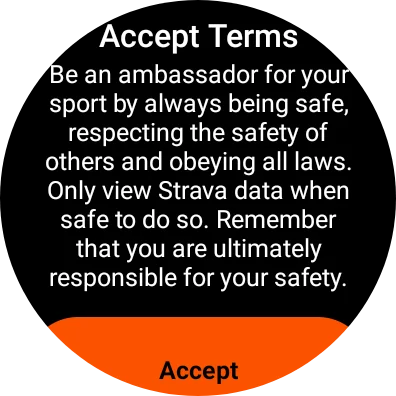
The app requires some permissions from your side, like location, sensor, terms, sharing, privacy, synchronize, and other authorizations. It will not start unless you accept all the permissions and terms.
4. Start the activity
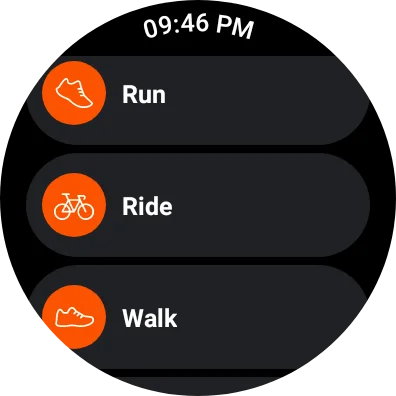
It includes all the major activities. In the Strava app, you can perform Run, Walk, Ride, Hike, Canoe, E-bike ride, Handcycle, Velomobile, Ice Skate, Elliptical, surf, Rock climb, Weight training, Yoga, and many more workouts. Tap on any activity to start it.
5. Stop, Resume, Settings, or Delete
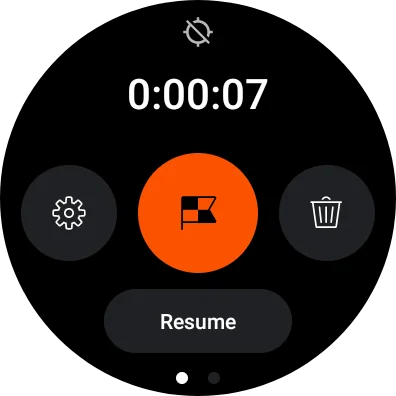
In the middle of the activity, you can pause or resume the activity, or completely delete it. To pause the activity, press the back button, and also press it to resume it. To delete it, slide your finger from left to right on the activity screen, and you will see all the options.
6. Finish the activity
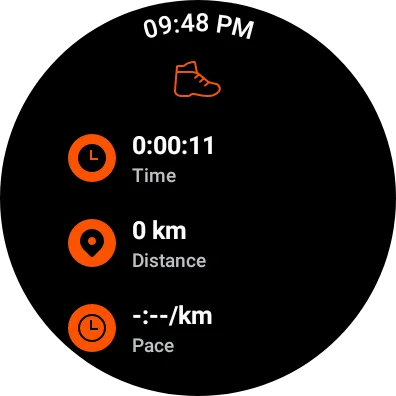
When you have done the activity, after a few minutes, it will stop in auto-detect mode. You can also finish the activity from the activity page. To do that, slide your finger from left to right and tap on an accomplished sign. Later, you can view the score or share it with your friends.
The Galaxy Watch 7, Watch 8 & Watch Ultra series also have a Samsung Health app, an excellent tool to track your health. The only drawback of Samsung Health is that it will not work with Apple Watch or other watches. That way, it will become difficult to transfer all your data to the smartwatches. It is the reason you should go with the Strava app.